Introducing the Skill Library: 1,280 Agent Skills, One Search Box

skills are scattered across hundreds of GitHub repos, and most of them have a README written for the person who built them. Finding the right one for a job usually means an afternoon of tabs. So we built a place to look first.
The Skill Library is live at learnstackos.com/skill-library, and inside LearnStackOS you'll find it under AI > Skills. It holds about 1,280 skills pulled from public GitHub repos that have 3,000 or more stars each. That bar keeps out a lot of weekend experiments. The sources include Anthropic, NVIDIA, Microsoft, Google, Matt Pocock, obra/superpowers, Trail of Bits, Cursor and others, and the list is refreshed every week.
What You Get on Every Skill
Each skill has a short explainer in plain words, split into two parts: What it does and Use it when. That second line is the one I care about most. A skill named something clever tells you nothing, and "Use it when you need to review a pull request for security issues" tells you almost everything.
You also see the skill's , its license, the star count of the repo it lives in, and when it was last updated. A popular repo that hasn't moved in a long time is a different bet from one its authors still work on, and now you can see that before you click.
One thing to know up front. LearnStackOS doesn't host any skill files. We're a directory and a router. When you click View Skill, you land on the skill's own source on GitHub, and every install comes straight from that source. The author stays in charge of their work, and you always get their current version instead of a copy we made months ago.
Free and Premium, Side by Side
Any signed-in member can use the library. Premium adds one thing, and it's a big one: your AI agent can use the library for you.

| What you can do | Free (signed in) | Premium |
|---|---|---|
| Browse and search about 1,280 skills | Yes | Yes |
| Filter by category | Yes | Yes |
| Read the plain-words explainer, license and stars | Yes | Yes |
| Open the source on GitHub with View Skill | Yes | Yes |
| Star skills and keep them in My Skills (My Documents) | Yes | Yes |
| Connect Claude Code or Codex to the library | No | Yes |
| Ask your agent for skills in plain words | No | Yes |
| Have your agent show install steps and run them after your OK | No | Yes |
The free tier is a good tool by itself. Search for "video", filter by a category, star the three that look right, and come back to them later in My Skills. Plenty of members will never need more than that.
Why Premium Is Worth It
Browsing still leaves you with the last mile. You found a skill, you opened GitHub, and now you're reading install notes and working out which folder it goes in.
With Premium, the whole trip happens in one with the agent you already use. You ask for skills, pick the ones you want by number, and your agent shows the exact install commands. It runs them only after you say OK. The files come from the latest version on GitHub and land in ~/.claude/skills or ~/.agents/skills, depending on your agent.
I think that's the right split of work. You make the choices. The agent does the typing.
How to Connect Your Agent
The library speaks , the protocol agents use to talk to outside tools. The address is https://www.learnstackos.com/api/mcp/skills. You sign in with your LearnStackOS account and approve the connection on a LearnStackOS screen, so there are no keys to copy or paste anywhere.
Claude Code. Run this in your terminal:
claude mcp add --transport http learnstackos-skills https://www.learnstackos.com/api/mcp/skills
Then type /mcp inside Claude Code, pick learnstackos-skills, choose Authenticate, and click Approve on the LearnStackOS page that opens.
Codex. Open the Skill Library and find the Connect Your AI Agent box. Copy the config it shows into ~/.codex/config.toml, then run:
codex mcp login learnstackos-skills
Approve the connection on the LearnStackOS page and you're done.
What Using It Looks Like
Here's the whole flow, start to finish.
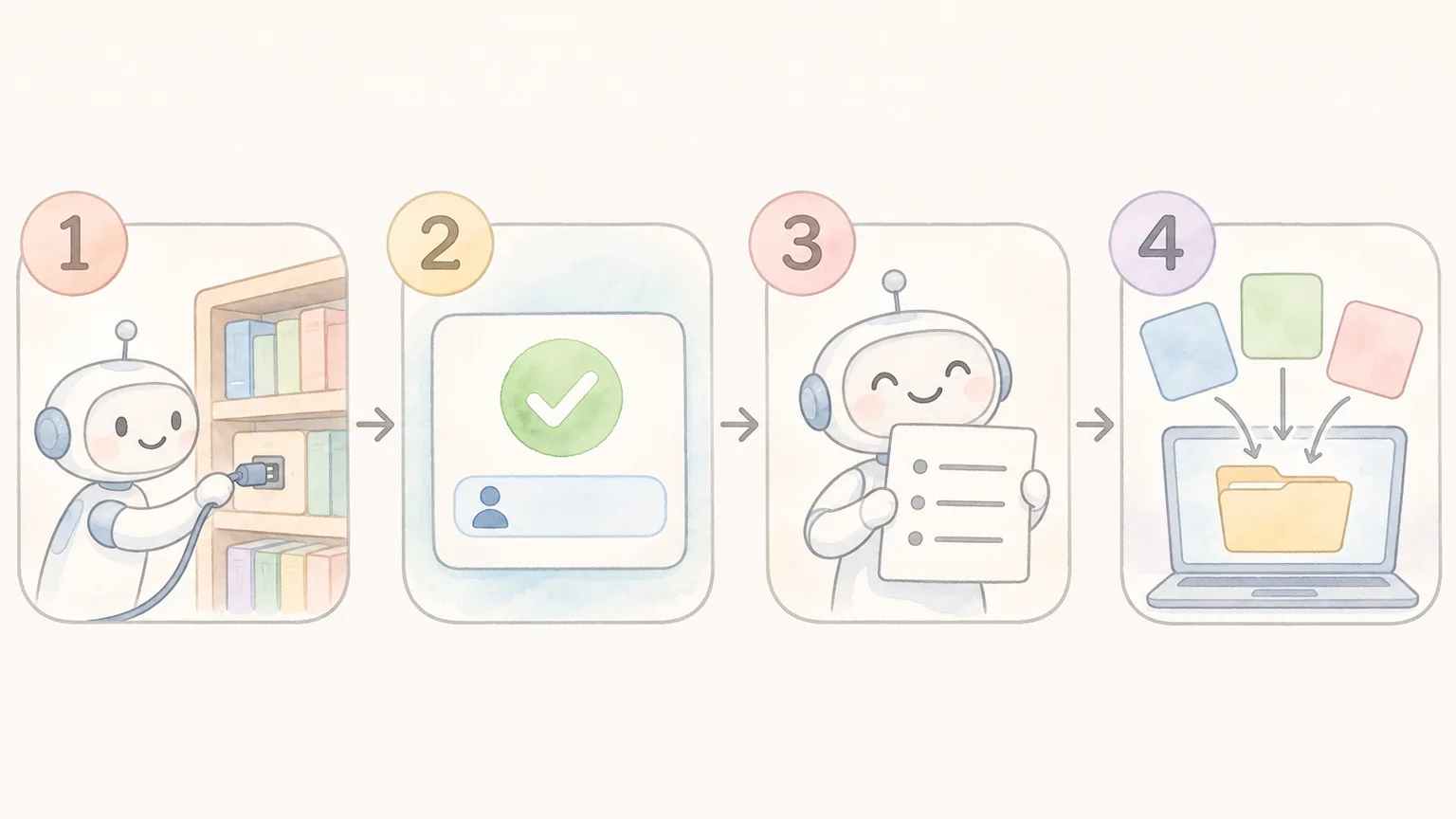
Once you're connected, you just ask. Something like:
Show me the best skills for video editing.
Your agent comes back with a numbered table: name, repo, a one-line summary and the repo's stars. You get 10 at a time. Say "next 10" to keep going.
From there it asks two questions. Show details? gets you the full explainer, the license and the source link for any skill on the list. Install anything? lets you pick by number, and you can mix single picks and ranges, like 1, 3, 5-8. The agent then shows you the exact commands it plans to run and waits. Nothing installs until you say OK.
That waiting step matters more than it looks. You see every command before it touches your machine, and you can stop at any point.
Safety and Privacy
A connected agent can do two things with the library: search it, and get links and install steps. That's the whole list. It can't see your profile, billing, messages, notes or learning progress.
You can disconnect at any time from Settings > Connected Agents. Fair-use limits apply, at 60 calls an hour and 300 a day, which is far more than a normal search session uses.
Skills belong to their authors and come under their own licenses. A skill is instructions your agent will follow, sometimes with scripts attached, so read it before you install or run it. Our Terms, section 15 covers this. The plain-words explainer and the View Skill link are there to make that review quick, so use them.
Where to Start
If you're on the free plan, open AI Tools > Skills and search for the job you do most often this week. Star whatever looks useful. You'll see fast whether the library has your corner of the work covered.
If you want your agent doing the fetching, Premium turns on the connection. Then try one real request, the kind of you'd normally go hunting for a tool to handle, and see what comes back in the first 10.